Quick Answer: To begin making YouTube voiceovers with Eleven Labs, start by writing a text that is meant to be heard. Login to eleven labs official site navigates to Text to Speech and paste your script. Pick a voice that fits your channel’s specialty, choose a model,then adjust stability, similarity, and style until you find the perfect tone. Click Generate and listen for uncomfortable pauses or mispronunciations. With commas, periods, etc. You get to decide when to pause, and how fast to talk. Download the audio as an MP3 file and import into your video editor and sync with your visuals. Problem lines regenerate. Before you post, check that your plan covers commercial use and that you’re following YouTube’s regulations for content created by AI.
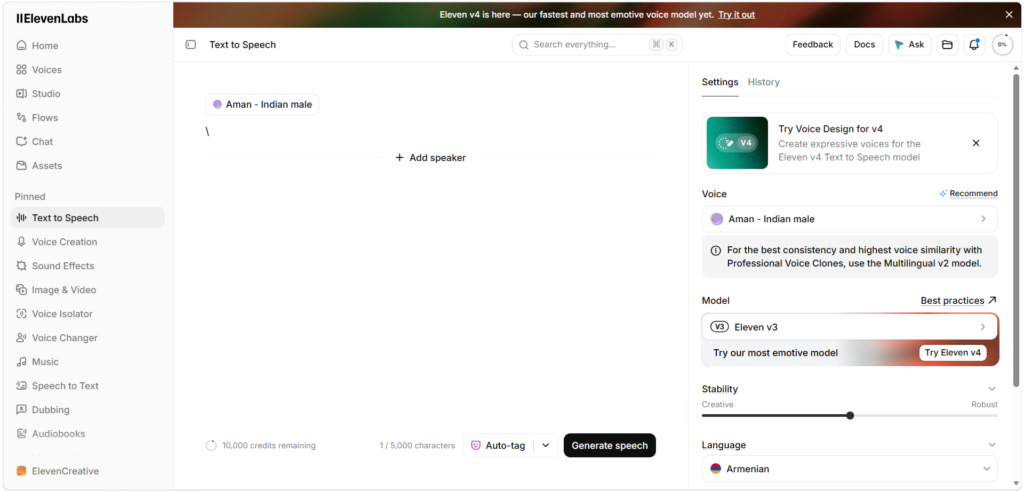
Table of Contents
Why use ElevenLabs for your YouTube voiceovers?
What makes ElevenLabs so special is the product is hardly robotic. The voiceovers do a far better job at pacing, pauses, and intonation than the older text-to-speech programs. A lot of actual benefits for the YouTubers:
- Time saved: No more mistakes in recording, re-recording and editing. Regenerate the line, Fix a typo in the script.
- Consistency: Your channel has a consistent voice from one video to the next. This helps with the branding.
- Language reach: Multilingual models let you create versions of your videos for audiences who speak other languages
- Accessibility: Produce professional narration without a microphone, studio or any audio experience.
That said, the quality of your output is still dependent on how you use the tool. Let’s take it apart step by step.
Step 1: Create a Listening Script
The largest error newcomers make is to copy paste a blog post in the text box. Writing is not talking. A text that reads well on the page may sound stiff when spoken.
The simplest. Use short sentences. Use contractions, like “you’re” and “it’s,” like you would in everyday speech. If your thoughts are long, attempt to break them down into 2 or 3 sentences. Read the script out loud once to catch the odd language. If you stumble over a line, the AI voice will likely sound unnatural on it, too.
Think about structure as well. A solid YouTube script would often include a hook in the first few seconds, break the major content up into clear chunks, and end with a call to action such as asking the audience to subscribe or comment.
Step 2: Create Your ElevenLabs Account & Start Text-to-Speech
Go to eleven labs official site and establish an account. You can even try the tool and listen to the voices on a free account. Once logged in, navigate to the Text to Speech option on the dashboard. This is where you’ll be doing most of your voiceovers.
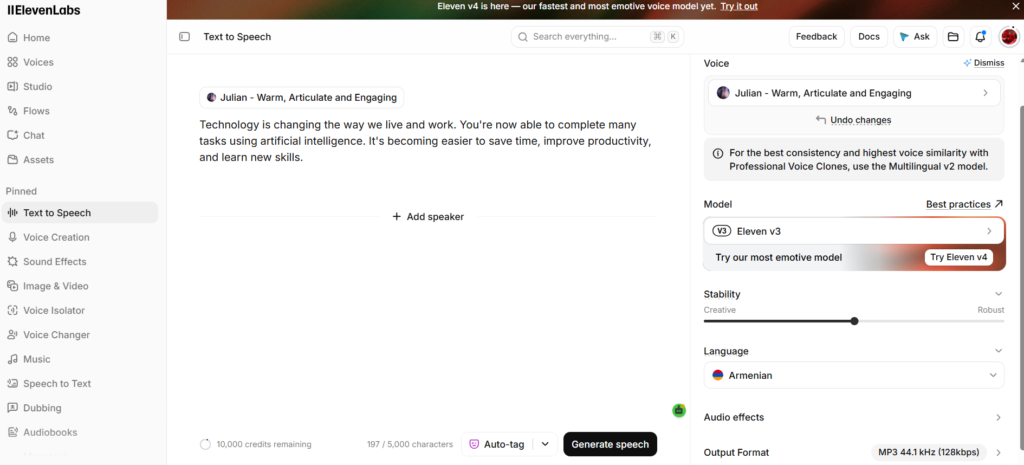
Paste your script in the text box. Paste your script in the text box. If the video is long, consider recording the audio in chunks, such as the intro, each major point, and the outro. This makes it a lot easier to repair mistakes without having to redo the entire voiceover.
Step 3: Choosing the Right Voice
Spend a little time here, as your voiceovers will affect how your audience feels about your content. Eleven Labs features a collection of premade voices that you may filter by criteria such as age, accent, gender, and style.
Match your voice to your niche. A calm, steady voice is appropriate for documentaries and educational videos. A lively, upbeat voice works best for a tech review, gaming, or lifestyle feature. If you’re doing storytelling or true crime, then a deeper, more dramatic voice can assist in building the mood.
If your plan allows, you can potentially clone your voice too. “You can have your own particular sound without going through the recording process. You can only clone a voice you are authorized to use and must always respect Eleven Labs” terms and conditions of use.
Step 4: Select Model and Tune Settings
Different models at ElevenLabs. For final videos, multilingual models typically give the most natural and expressive results, but quicker models are helpful for quick drafts and testing. Model names and features change frequently, so check out what’s available in your dashboard now.
Adjust the voiceovers settings
Stability:
Low values will make the delivery more expressive and diverse; high values will make the delivery more steady and constant. Moderate settings are good for long-form narration.
Similarity:
This variable controls how near the output is to the original voiceovers sample. Try a couple of levels. Sometimes excessively high values will create undesired artifacts.
Style:
Higher settings lead to more exaggeration and emotion, which is ideal for dramatic content but distracting for instructional videos.
There is no best combo. This is a short test paragraph. Pay attention. Adjust it till you have the tone you want.
Step 5: Use punctuation and formatting to control delivery
That’s the trick that makes decent AI voiceovers fantastic AI voiceovers. The voice takes your punctuation as a cue to perform. Commas are a brief pause, periods a longer pause, and question marks raise the tone. Ellipses can signal uncertainty or suspense, while dashes can offer a dramatic pace.
If the statement seems rushed, add a comma or break it into two sentences. If you get a term wrong, try to spell it phonetically. For example, spell a brand name the way it sounds. Often, fixing the script is faster than fiddling with any slider.
Step 6: Generate, Check & Download
Click Generate and listen to the entire clip with headphones. Listen for mispronunciations, odd pauses, and when the emotion doesn’t fit. If something is wrong, just edit that line and regenerate it. No starting over.
Happy with the audio? Download the voiceovers. MP3 is an excellent choice for most projects and helps keep file sizes small for editing.
Step 7: Sync Your voiceovers to Your Video
Import the audio into your video editor, CapCut, DaVinci Resolve, Premiere Pro, or whatever. Create visuals on the timeline that complement your voice-over. Include b-roll, screen recordings, text overlays, and transitions that align with what the narrator is saying.
Finally, play some light music in the background, but not to the point that it drowns the voice. A little bit of audio normalization and a noise-free mix means the end output is professional.
Best Practices, Things to Consider
There are a few habits that will improve the performance of your voiceovers and keep your channel in excellent standing: – Check YouTube restrictions. YouTube has regulations about synthetic and manipulated content and may ask you to designate realistic content made by AI. Be certain to verify current regulations before posting.
- Licensing of films. If your channel is monetized, be sure your plan allows for commercial use.
- Do not pretend to be someone else. Do not clone or imitate someone’s voice without consent.
- Be a human being. Good visuals, good editing, and good scripting are as crucial as the voice itself. Test drive it before you invest. Read a short sample to a friend or small audience to see how it plays.
Can I use ElevenLabs voiceovers on YouTube?
Yes, many creators use it for narration and faceless channels. Check your plan’s licensing terms for commercial use.
Is Eleven Labs free to use for YouTube voiceovers?
With ElevenLabs you can try the tool for free, but the free tier has monthly usage limitations. Paid plans usually give regular creators more credits and commercial rights. Current limits are on the pricing page.
Which voice is best for YouTube videos?
It depends on your niche.
Can Eleven Labs create voiceovers in other languages?
Yes, it supports many languages, which helps you reach international audiences.
How do I fix mispronounced names or terms?
Spell them phonetically in your script or use the pronunciation controls. Test tricky words in a short generation first.
Step-by-Step Guide: Creating YouTube Voiceovers with Eleven Labs
Step | What to Do | Pro Tip |
| 1. Write the script | Use short, conversational sentences written for the ear | Read it aloud before generating |
| 2. Choose a voice | Pick from the voice library or clone your own (if your plan allows) | Test 2-3 voices on the same paragraph |
| 3. Tune the settings | Adjust stability, similarity, and style | Lower stability gives a more expressive read |
| 4. Fix pronunciation | Spell names, brands, and jargon phonetically | Test tricky words in a short clip first |
| 5. Export the audio | Download the final files | Keep a consistent file naming system |
Conclusion:
ElevenLabs is one of the best natural sounding AI voiceovers for YouTube, especially for explainers, tutorials, faceless channels and narration heavy video. The workflow is simple:
- Write the script for ear.
- Read it aloud first.
- Use brief sentences.
- Use a conversational tone.
- Select or make a voice.
- Select from the voice library or clone your own voiceovers if your plan permits
- Set up the settings More stability leads to a more even read, less stability leads to a more expressive read. Tune similarities and style to match your content’s voice.
- Create incrementally. Do it paragraph by paragraph so you may re-run weak lines without re-doing the entire thing.
- Pronunciation is right. – It was a good thing the old man had money. – The old man was lucky because he was rich.
- Edit & Export . Put the audio in your editor, then add background music, light compression and room matched EQ.
- “If required, disclose.” Follow YouTube’s policy regarding modified or synthetic material. Licensing your ElevenLabs plan for commercial use.
References:
AI Text to Speech: Most Realistic AI Voice Generator | ElevenLabs

I am Sirisha, and I am a digital marketing professional and content creator interested in Artificial Intelligence (AI), digital marketing, websites, apps, software, and technology. I also have completed digital marketing training from ODMT, where I have learned about Search Engine Optimization (SEO), Google Ads, Meta Ads, and web designing. My learning and hands-on experience is building on my knowledge of digital marketing, AI tools, and online technologies.
I’m the founder and content creator of TVSM Blogs, and I’m here to share useful, informative, and beginner-friendly content about AI tools, digital marketing, software applications, website development, blogging, and emerging technology trends. I want to help people understand new digital devices and how to use them effectively in their personal and professional activities. I am particularly keen to investigate AI-powered tools like ChatGPT, Gemini, Claude, Perplexity, and other productivity tools that can help with content creation, marketing, research, and everyday tasks.
I will be writing about practical AI tutorials, digital marketing guides, app reviews, software comparisons, website tutorials, and tech articles on my blog. I believe in continuous learning, research for reliable information, and sharing knowledge in a simple and easy-to-understand language. I want to review some tools, share my practical experience with them, and explain their features, benefits, and limitations so that readers can make informed decisions.